[CL] 1–4 except Links, 6
1. le shell
The “shell” is what takes keyboard commands and passes them into the OS to run. Almost all linux distros have bash
Terminal Emulators are programs like konsole or gnome-terminal that let you run the terminal when using a GUI.
Shell prompts may look differnt depending on the distro, but it usually has your username@machinename, then the working directory, and then a dollar sign $
- A
#instead of$indicates superuser privileges. (happens when logged in as the root user or using a terminal emulation that gives superuser privileges)
There are also a bunch of “virtual terminals / consoles” running in the background accessed by pressing CTRL + ALT + [F1 to F6] and when a session is accessed you can switch between them with ALT + [F1 to F6]. ALT+F7 will send you back to the graphical desktop.
- This lets you switch out from a buggy GUI session into a CLI and do all sorts of bug-fixing shenanigans
All of our terminals are basically virtual now. Physical terminals looked like this
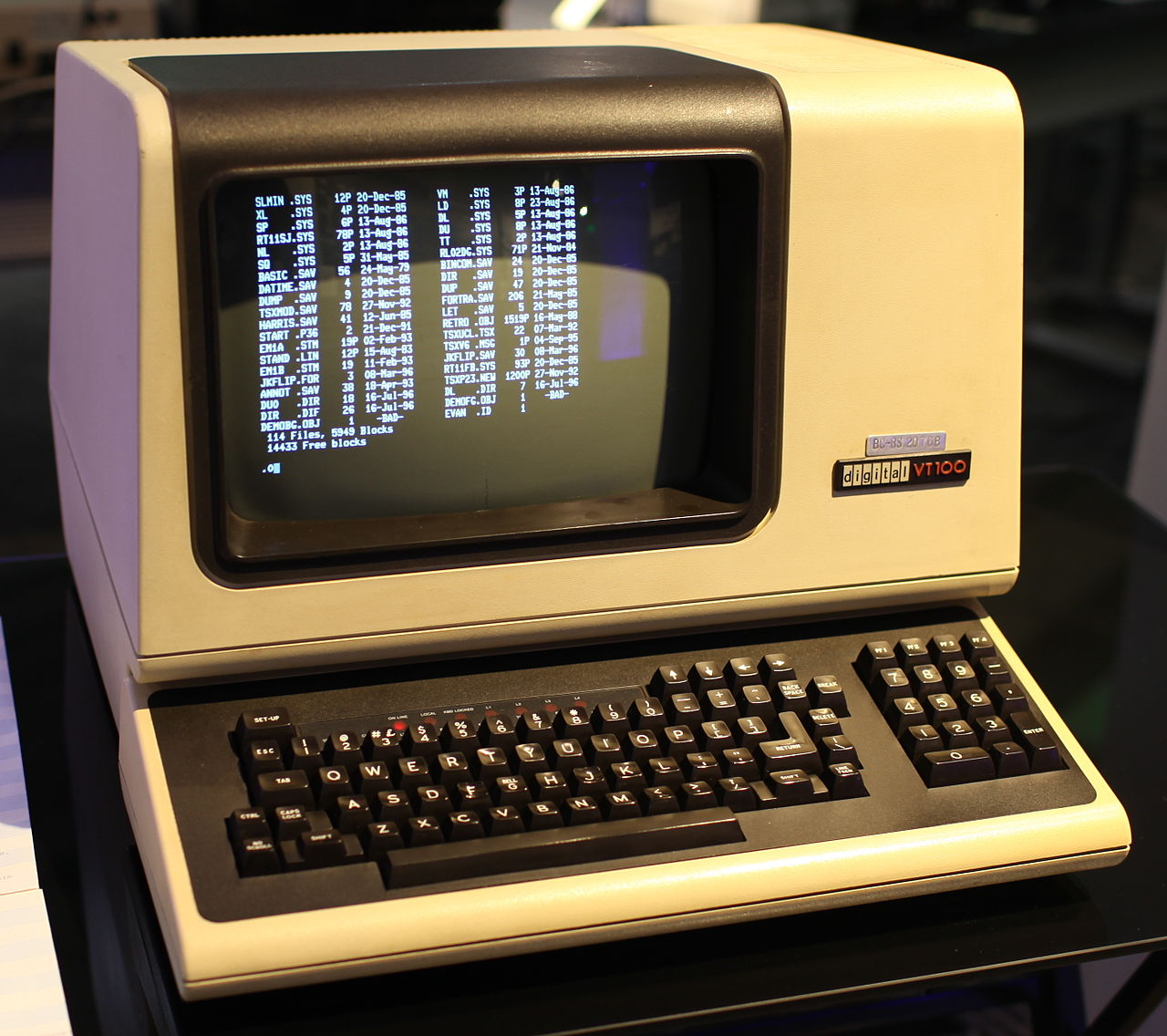
- These guys simply displayed things and returned what the keyboard inputted. NOTHING else.
2. navigation
pwd, ls and cd
files r in a hierarchy windows is diff cuz it has seperaete file system tree for each storage device. in linux, these storage devices are “mounted” at points in the big chonky tree that unix uses.
The path ~ represents the current user’s home directory. So ~ = home
When refering to the curernt directory with ./, in most scenerios it’s sufficient to just omit it:
cd ./binvscd binare identical.
Also:
cdwill simply go to the user’s home directorycd -will go to the previous working directory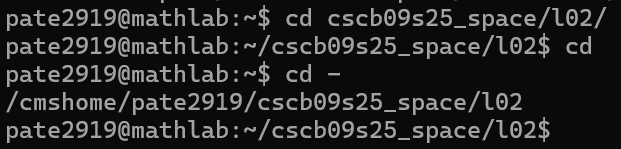
cd ~user_namechanges the directory to the home directory of the user supplied
Files that start with
.are “hidden” (dotfiles).
- Won’t be listed with
lsunless you add-a
Linux doesn’t use “file extensions”, but application programs do.
3. exploring le system
ls lists directory contents
file determines the file type
less views file contents
ls things
ls can take in other pathnames to list another directory:
ls /usrOR you can list several directoriesls ~ /usr ..
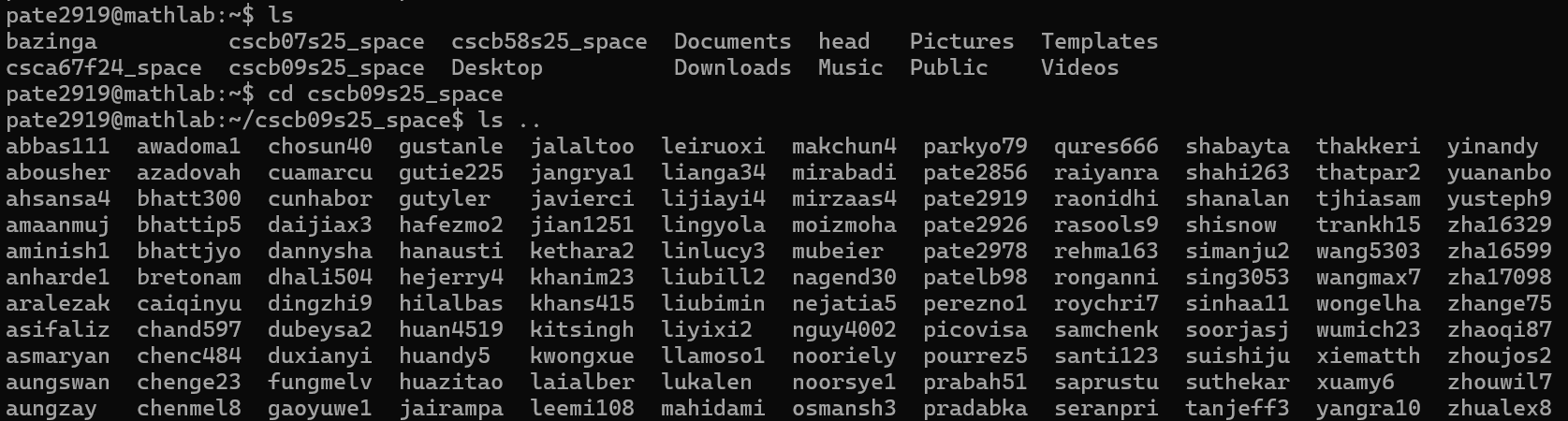
- Ask someone about thistodo. WHY IS THIS BEHAVING LIKE THIS!?!?!?
- Wouldn’t
ls ..print the contents of my home directory? Then why is it printing all this garbage?!
- Wouldn’t
The option -l for ls adds more details to the output
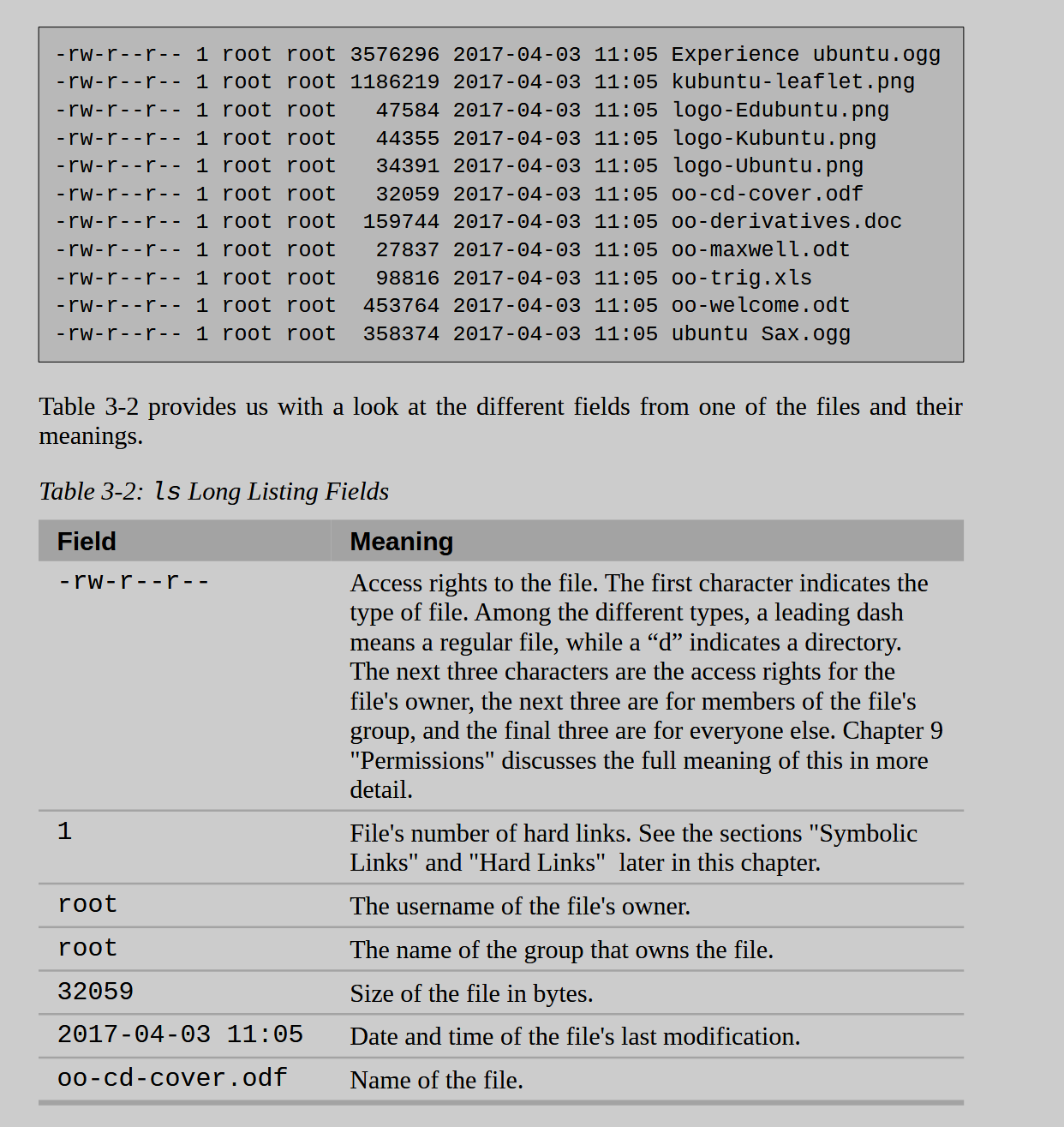
- The first character is the “type” of file
-= regulard= directory
- The next 9 characters detail the permissions.
- Refer to this
file filename fetches info about the file filename
- in Linux, “everything is a file”
less filename lets you read text files
The directories within linux systems
| Directory | Purpose |
|---|---|
/ | The root directory |
/bin | Contains binaries (programs) for the system to boot. Newer linux distros instead use /usr/bin |
/boot | Has the linux kernel, initial “RAM disk image” required by drivers at boot time, and the boot loader. - The boot loader runs before the OS starts and initializes hardware things + the kernel. |
/dev | Contains “device nodes”. Since devices are also files, this folder is where the kernel maintains a list of all devices it understands |
/etc | Contains system-wide config files. Also contains shell scripts that start system services at boot time. ”Everything in this directory SHOULD be readable text” One interesting file includes /etc/passwd which has a list of user accounts |
/home | Each user has a folder here, that folder being their ~ |
/lib | Stores shared library files for system programs. Similar to windows DLLs. Deprecated, so use /usr/lib |
/lost+found | Stays empty less something really bad happens with our system |
/media | For removable media like USB drives |
/mnt | ”mount”. Mount points for devices mounted manually (todo what does this mean) |
/opt | ”optional” software |
/proc | Reveals things abt the computers hardware. Managed by le kernel |
/root | Home directory for the root acount |
/run | Replacement for /tmp. “mounted using tempfs which stores its contents in memory and not on the disk |
/sbin | System binaries (programs vital for the system). Deprecated for /usr/sbin |
/sys | Contains info about devices by le kernel. It’s similar to /dev but more detailed |
/tmp | deprecated. Temp files can be dumped here for the lols. Some distros empty it on reboot |
/usr | ”likely the largest directory” Contains programs and support files used by regular users |
/usr/bin | Contains program executables |
/usr/lib | contains shared libraries |
/usr/local | For programs not included with the distro but still used system-wide These programs are usually installed in /usr/local/bin |
/usr/sbin | System admin programs |
/usr/share | Contains shared data by programs of /usr/bin |
/usr/share/doc | Most “packages” (todo what is a package) installed on the system will include some kind of documentation. In /usr/share/doc, we will finddocumentation files organized by package. |
/var | Where changing data is likely to be stored |
/var/log | Records system activity. |
~/.config and ~/.local | Stores user specific details and whatnot. |
Symbolic Links
-
Aka
soft linkorsym-link -
These are “a special kind of file”
-
In Unix-like systems, you can have files referenced by multiple names
- You can access the same underlying file using two distinct names within the file system
- Think of it like shortcuts that go to a common file
-
Pretend you have a file that several programs use, call it
foo. This file constantly changes version and we want to update the file name to reflect that (i.efoo-v1.8.9). However if we updatefootov1.9.0, we would have to update the references that the several programs have onfoo(how could we expect them to know what the new name will be!?)- To fix this, you can have a symbolic link, call it
go_to_foo(semantically it should be calledfoofrom what I understand) that points tofoo-v1.8.9. All the programs will referencego_to_fooand NOTfoo-v1.8.9. That way we only need to update whatgo_to_foois pointing to to updatefootov1.9.0
- To fix this, you can have a symbolic link, call it
-
Writing into a symbolic link will update the referenced file. However, deleting a symbolic link can never delete the file itself. Also, if the file gets deleted, a symbolic link can be dangling / broken
Hard links
- This is in chapter 4 but they split it up lol
- the OG way to create links in Unix
- By default EVERY file has a single hard link that gives the file its name. Creating another hard link essentially creates another
directory entryfor a file. However- They cannot reference a file outside its own file system
- A link cannot reference a file not in the same disk partition as the link itself.
- Hard links cannot reference directories
- They cannot reference a file outside its own file system
- They are “indistinguishable” from the file itself.
- You can see a symbolic link is a symbolic link when running
ls -l- todo try this out.
- You can see a symbolic link is a symbolic link when running
- You can delete a hard link but the file will persist; only when you delete ALL hard links does the file get deleted for real.
ln creates hard + symbolic links
4. Manipulating Files + Directories
Wildcards
- A
shellfeature! - Helps specify groups of files
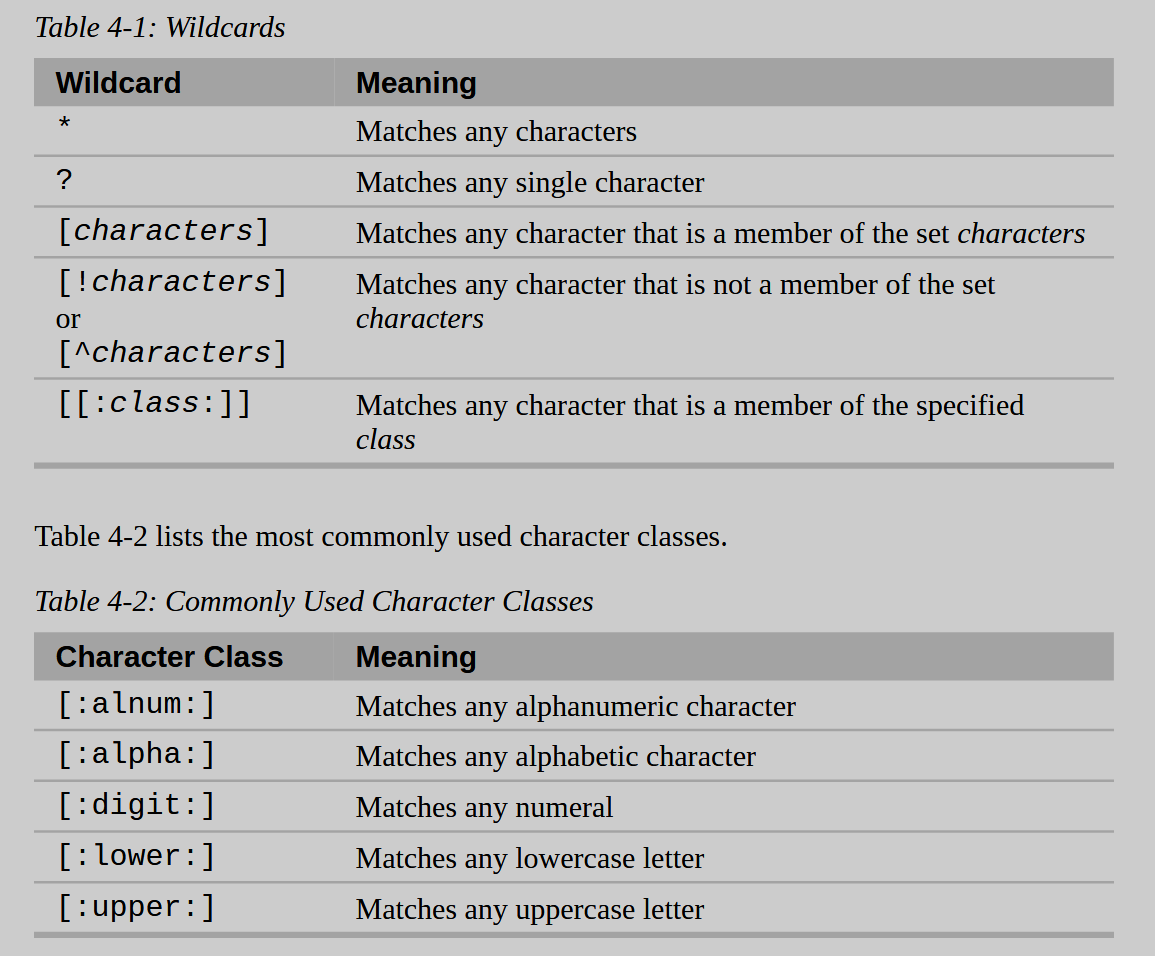
Here are some examples:
*= all filesg*= all files beginning withgb*.txt= all files starting withband ending with.txtData???= Any file beginning withDataand then exactly 3 characters[abc]*= any file beginning with a, b, or c[BACKUP.[0-9][0-9][0-9]]= starts withBACKUP.then 3 numbers[[:upper:]]*= anything beginning with an upper case letter[![:digit:]]*= anything not starting with a number*[[:lower:]123]a file ending with a lower case letter, 1, 2, or 3.
These also work in some places of GUIs!!
mkdir
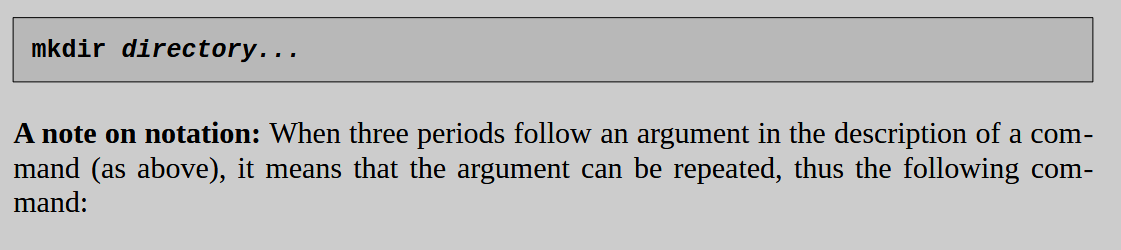
- So i was right1
- You can do
mkdir dir1 dir2 dir3
- You can do
- The
...means that argument can be repeatteddd
cp
- You can either
- copy a file / directory into another file / directory
cp item1 item2
- Copy multiple items into a directory
cp item... directory- todo how does
cpknow when the directory starts? What if i want to copy a file into a directory?
- copy a file / directory into another file / directory
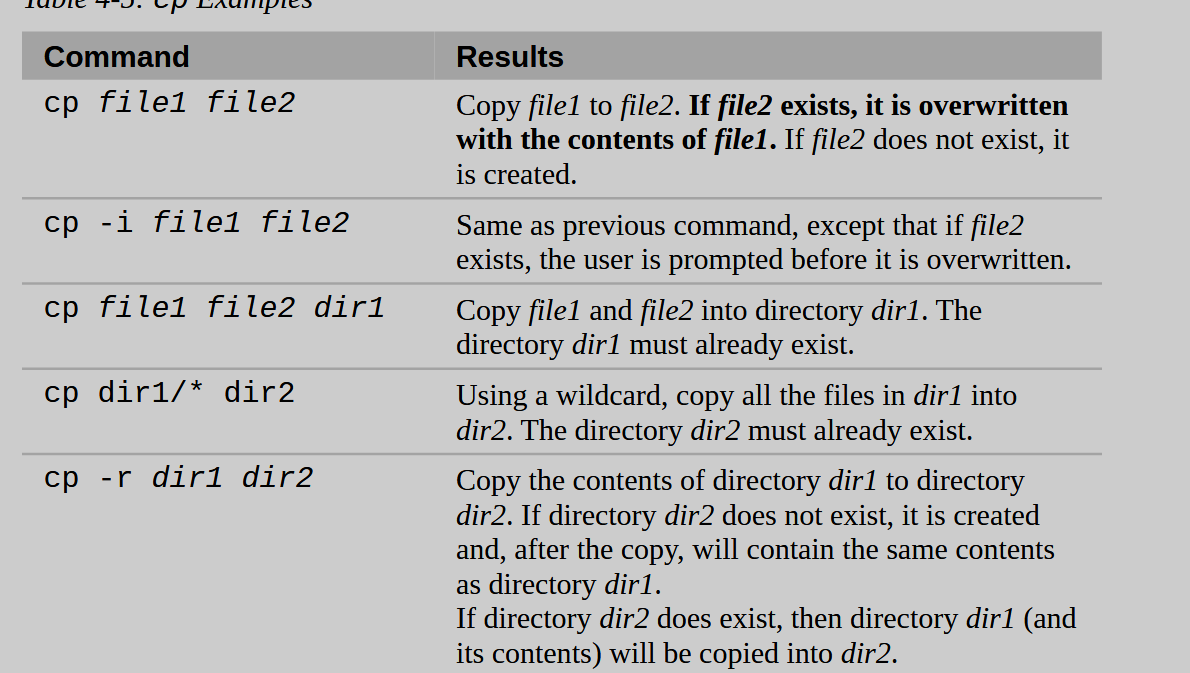 #todo card these
mv
mv item1 item2 moves or renames the item item1 to item2
mv item... directory moves any number of items to another directory
-i will ask for permission
-u will only move files that don’t exist or can update already-existing files
-v for verbose logs
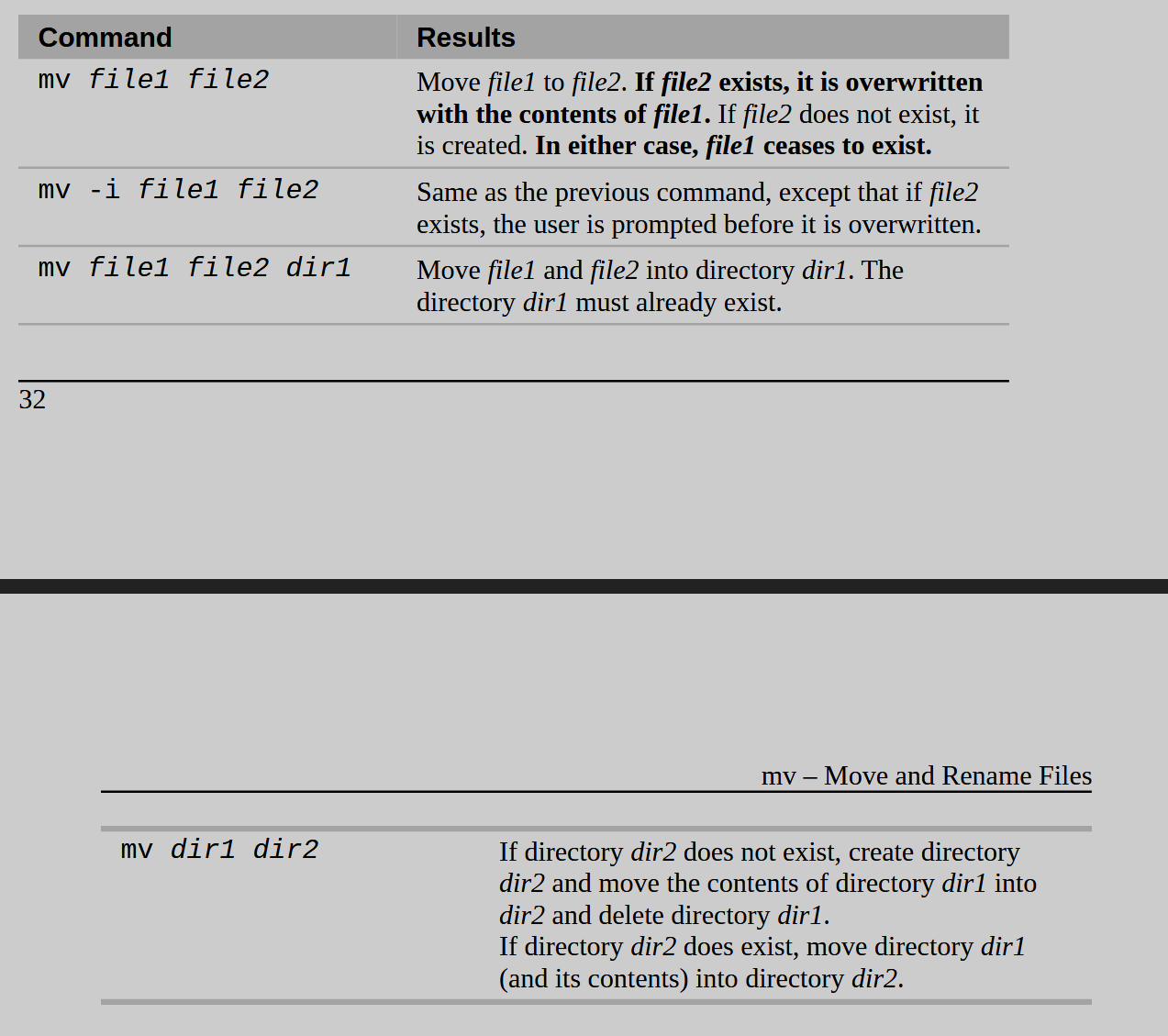 #todo again, card these
rm
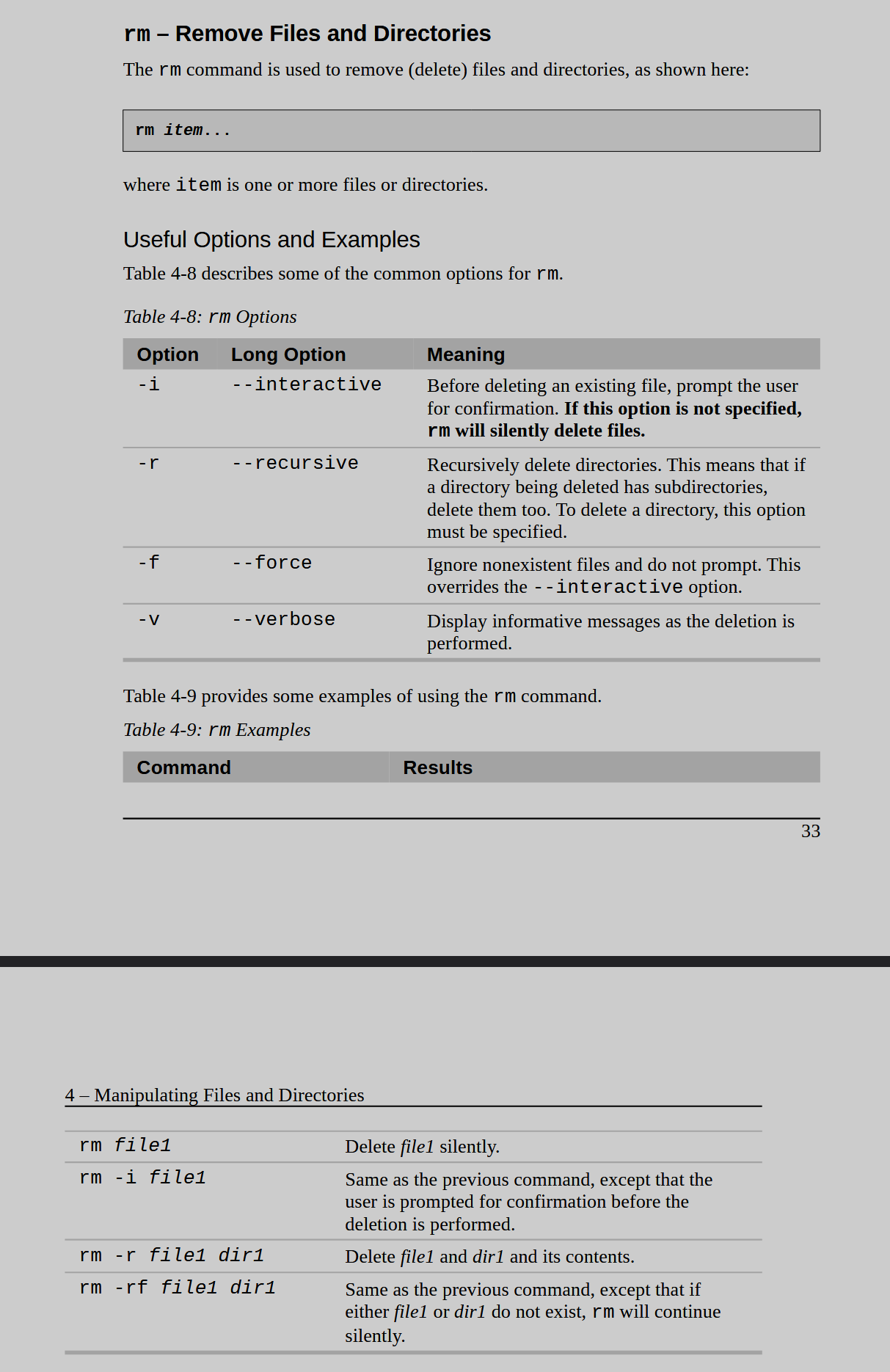 AGAINtodo Card these!
ln to create links
- wait he said to ignore this… okay then
- Well anyway it’s like this:
ln file link(position)for hard links andln -s item linkfor symbolic links.
the hard link and soft link stuff is above in chapter 3 notes cuz i like combining things
[CL] 5.3, 6, 20 for week 2 lab
Chapta 5 (getting a command’s documentation)
help works for all shell built-ins and intends to… help you
[me@linuxbox ~]$ help cd
cd: cd [-L|[-P [-e]] [-@]] [dir]
	Change the shell working directory.

	Change the current directory to DIR. The default DIR is the
	value of the HOME shell variable...

	...etc. etc.
The
[]square brackets indicate optional items and a|bar indicates mutual exclusivity (you can have one or the other)In the above example, you can either use
-Lor-P; if you’re using-Pthen you can optionally also use[-e]
--help displays usage information for a lot of executable programs
man gives the manual for programs that provide one (aka man page)
- It even takes in a number to get a specific section
man 5 passwdgives the file format of the/etc/passwdfile
Other commands that… might be useful?
aproposdisplays appropriate commands given a keywordapropos partitionwould look for commands who, in their man pages, includespartition
whatisin 1 line displays the name and description of the man page of a commandinfois an alternative to man pages. Info manuals are shown when runninginfo command.- They are “hyperlinked” like websites, where there is a tree and you can go up and down it so as to organize the manual into “sections”
- e.g. most of the GNU Project’s command line programs are under
coreutilsso runninginfo coreutilswill show all the commands under it
Creating commands with alias
alias name='commands ; go ; here'
- Will create a command named
namethat runs the commands outlined by it - idk where the commands for
aliasr stored though
6. I/O Redirection
cat concatenates files but also spits out the entire file’s contents into stdout
cat file.txt otherfile.txt- it would print both of these concatenated
sort, uniq, rep, are all filter commands. head and tail are similar
wc = word count
tee = T = pipes. It basically takes in things from stdin and dumps it to stdout and other places
- You can route the input into 3 files as well as stdout
stdout and stderr are all files (as per the nature of unix’s “everything is a file” nature) however stdout and stderr by default are linked to the terminal and not saved on a disk file
ls -l /bin/usr > ls-output.txt
- Consider when
ls-output.txtdoes not exist - Then the output will be an error and that is thrown into stderr (i.e. NOT the output file; it will print it to the console)
Running > previous_output.txt will create a new, empty file / clears an existing file.
- When opening for writing, the file will ALWAYS be cleared before any programs do anything
- Think of this:
nonexistent > myfile- nonexistent is a non-existent command. It WILL throw an error, but it will be too late: myfile will already have been cleared!
- todo what happens if i use >> ?
>> does redirect, but it does NOT overwrite the file; instead it will append to the output
Group Commands
{ command1; command2; command3; } > logfile.txt
- You can chain commands and this is synonymous to writing:
command1 > logfile.txt
command2 >> logfile.txt
command3 >> logfile.txt
Redirecting Standard Error
- You must refer to the file descriptor
2to redirect tostderr - There are far more than just 3 (stderr, stdout, stdin) file descriptors.
ls -l /bin/user 2> ls-error.txt- The same is true for standard out, but by default
>is equivalent to1>
Redirecting Standard Output / Error to one file
ls -l /bin/usr > ls-output.txt 2>&1 outputs to the file. It also redirects the standard error to wherever stdout is pointing to (which is ls-output.txt)
Think of
>redirections as occurring after the “meat” that are the commands have finished. Then, whatever is left over is finally what’s redirected
Consider 2>&1 > ls-output.txt
- This will route standard error to what stdout is pointing to… which is just the terminal! So nothing changes.
- Then we also have that “nothing” is redirected into
ls-output.txtso that’ll be empty.
/dev/null
- You can redirect the output to this “null” file which simply does “nothing” with whatever you dump into it.
ls -l /bin/usr 2> /dev/null - This will completely shun away any errors; it will not show in the console or anything like that.
movie.mpeg.0* > movie.mpeg
- Merges all of these “subfiles” into 1 chonky file
- todo Play around with these and other wildcards
Also running cat will simply wait for you to type something since by default stdin is pointing to the keyboard.
- waittodo is every instance where you can do
<replaceable with using the keyboard? uniq > test.txt- This will actually make you get input from the keyboard.
- If you wanted to instead use a file you would have to do
uniq < test.txt > other - todo I NEED TO PRACTICE THIS
>= stdout to file|stdout to another command- Basically it throws whatever stdout already has into the command, instead of asking the user for it.
echo test > file1 > file2would output only tofile2and NOTfile1;file1would be emptied though, by nature of redirection (i.e. opening for writing)
tee
ls /usr/bin | tee ls.txt | grep zip
- This throws the output of
ls /usr/bininto stdout, which is then piped intoteemeaningteeis taking the list of files, and outputting it intols.txt. Due to the nature oftee(or rather, it’s sole purpose), it also “returns” or i guessstdoutis set to whatteewould return. That is then piped again intogrep zipwhich prints all files withzipin it. It does NOT print the output intols.txtsincestdouthas NOT been redirected!!! - It really is like a T pipe.